How the Adhisaat Partner App Works
Join thousands of healthcare professionals earning on their own schedule. Set up your profile, accept bookings, and get paid — all from one easy app.
Phase 1
Complete Your Setup
Complete Your Profile
Go to Menu → Edit Profile and add your personal details, profile photo, and contact information.
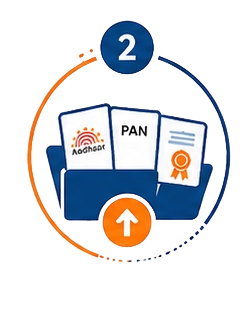
Upload KYC Documents
Go to Menu → KYC Documents and upload your Aadhaar Card, PAN Card, and professional certificates for verification.

Add Your Services
Go to Menu → My Services and select the healthcare services you provide. You will receive booking requests only for the selected services.
Add Bank Details
Go to Menu → Bank Details and add your bank account information to receive payments and settlements.
Set Your Work Schedule
Go to Menu → Work Schedule and configure your available days and timings. Once your schedule is set, switch your account Online to start receiving booking requests.
Phase 2
Receiving and Accepting Bookings
Receive Booking Requests
When a customer books a service matching your skills and availability, you will receive a notification.
Review Booking Details
Open the booking request and check:
• Service name |
• Date and time |
• Location |
• Shift details |
• Earnings |
• Customer information
Select Available Sessions
For long-duration bookings, choose the sessions, days, or shifts you are available to provide.
Accept or Reject the Booking
• Tap Accept if you are available.
• Tap Reject if you cannot take the booking.
The customer will be notified immediately.
Phase 3
Providing the Service

Navigate to Customer Location
Open the booking details and use the Navigate button to reach the customer's location.
Start the Session
Once you arrive, tap Start Session to begin the service.
Complete the Session
After providing the service, tap Complete Session to mark the session as completed.
Phase 4
Earnings and Payments
Track Your Earnings
View your earnings from the dashboard:
Open the booking request and check:
• Today's Earnings |
• Weekly Earnings |
• Monthly Earnings |
• Total Earnings |
Withdraw Your Earnings
Completed session earnings are credited to your wallet. You can request withdrawals from the Earnings/Wallet section.